How to upgrade KYC Level of your Business

Account KYC Level 2 is an extra check using address proof to unlock more features (for example fund deposit, and merchant services). This is not the same as Personal Identification in User’s Settings.

From Home (this banner is displayed to some users only)

1. Open Account in your Personal Account and tap the KYC Level 2 card.
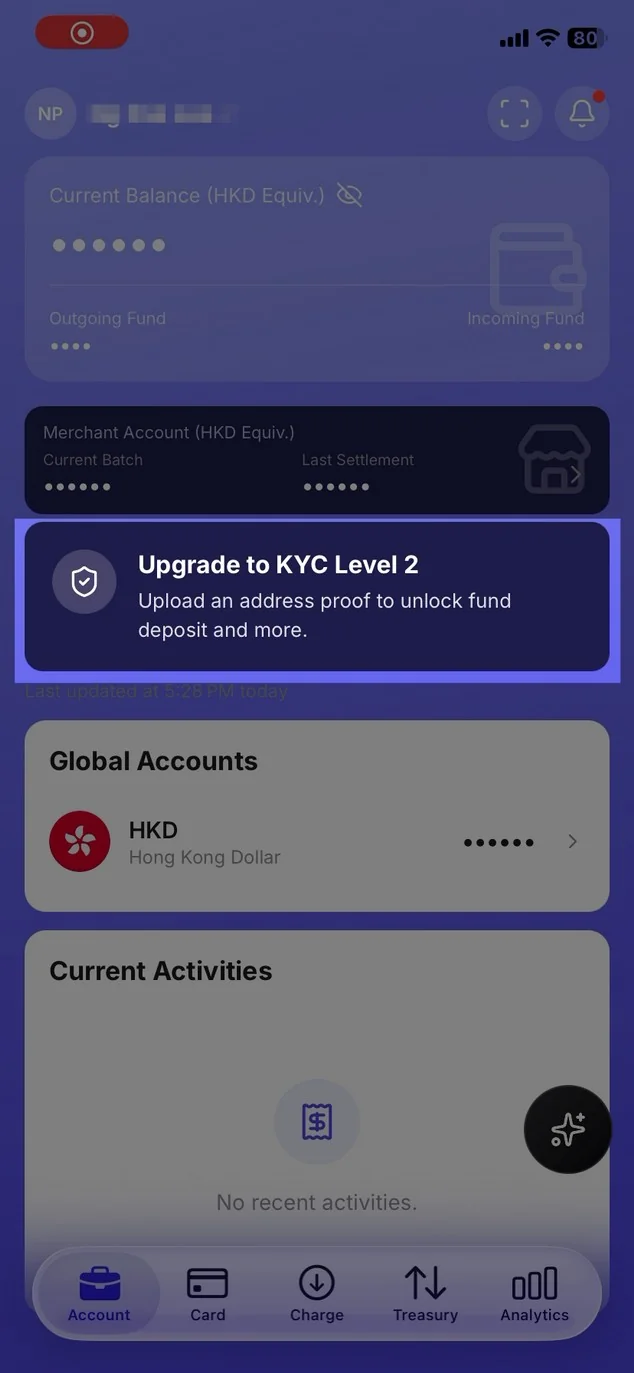
Mobile app home screen showing the Upgrade to KYC Level 2 banner

2. If shown, tap Unlock Level 2 KYC.

From Settings (use this if there is no banner)

1. Open Settings (menu, or the person icon on Business Directory).
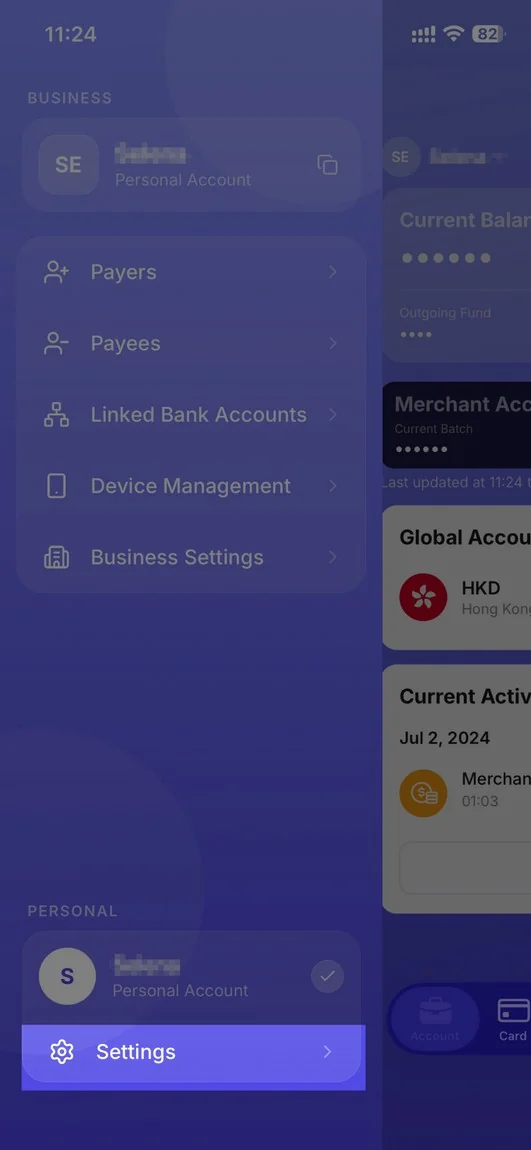
Mobile banking application interface showing business and personal account settings

2. Under Identity & Verification, tap Account KYC Levels.
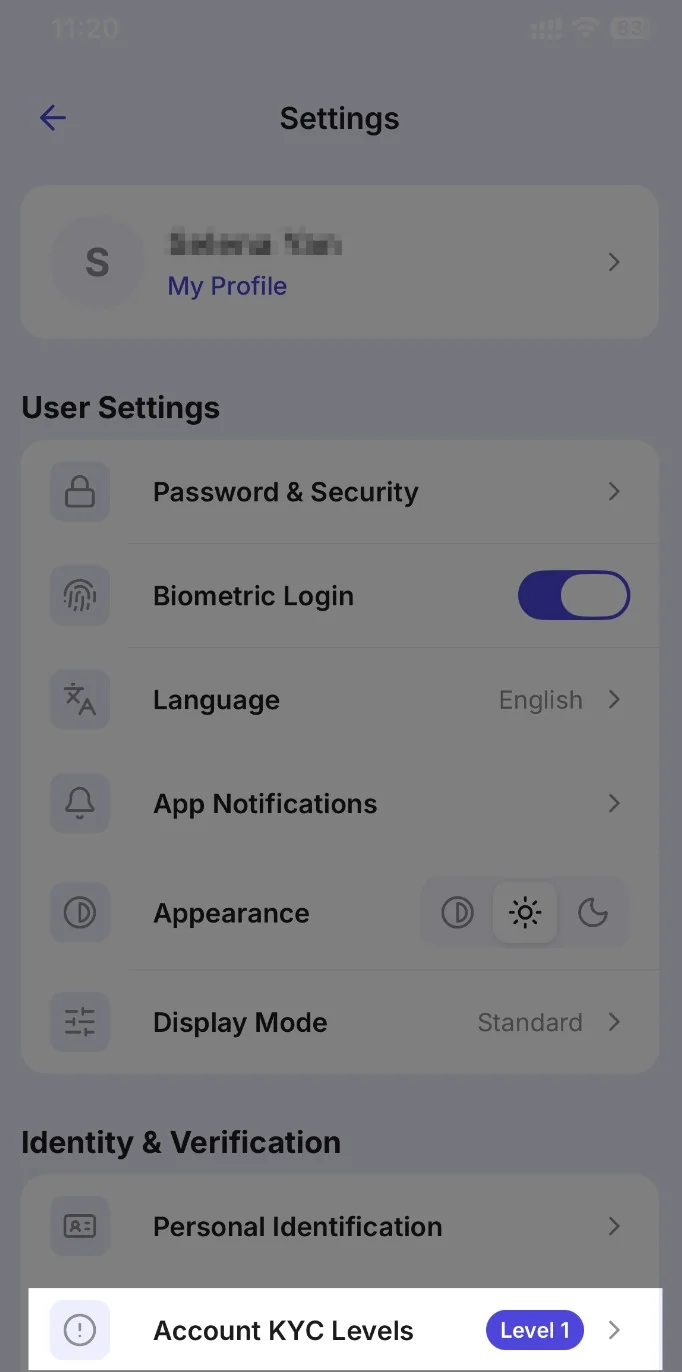
Settings menu screen showing user profile, user settings, and identity & verification options

3. Tap Unlock Level 2 KYC if it is shown.
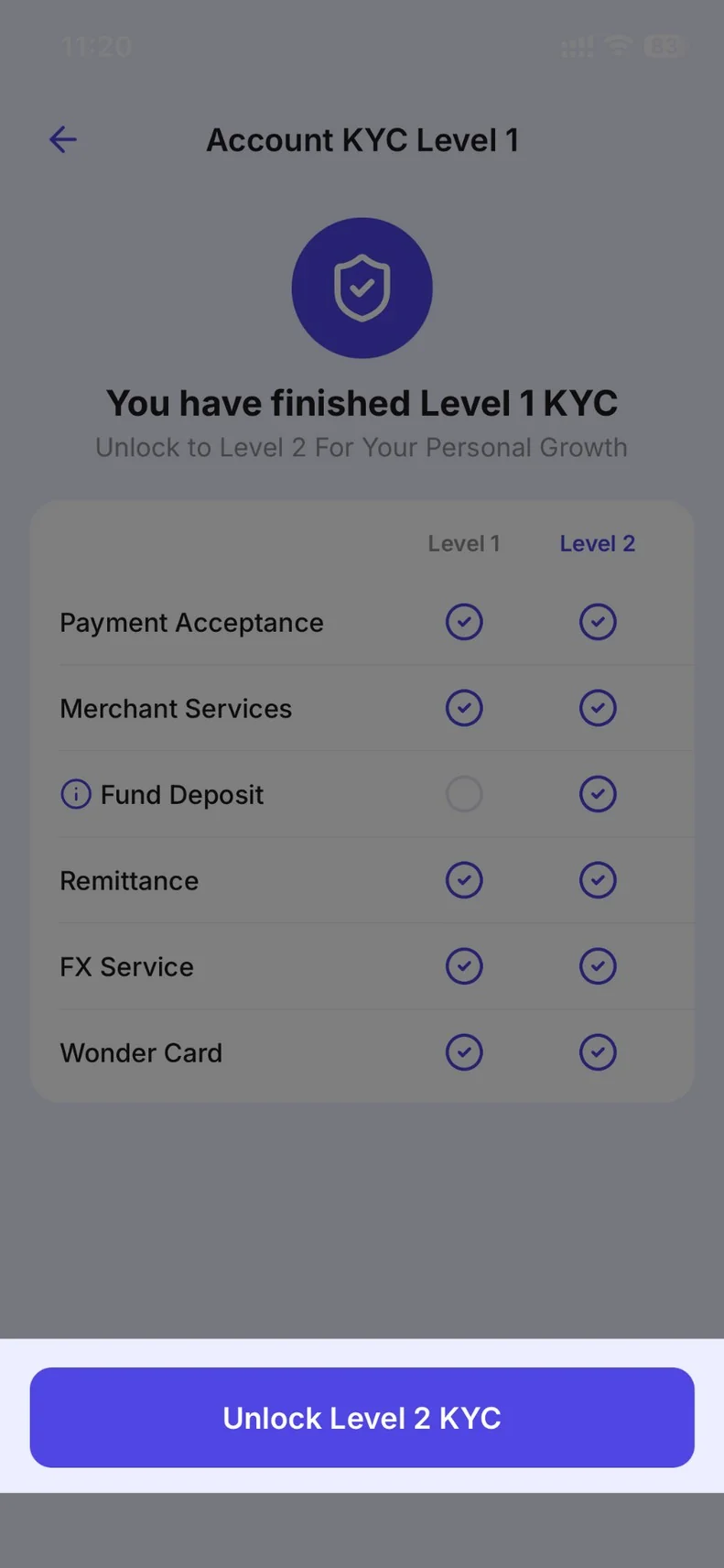
Account KYC Level 1 screen showing Level 1 and Level 2 service availability

4. Follow on-screen instructions to scan the address proof as per direction.
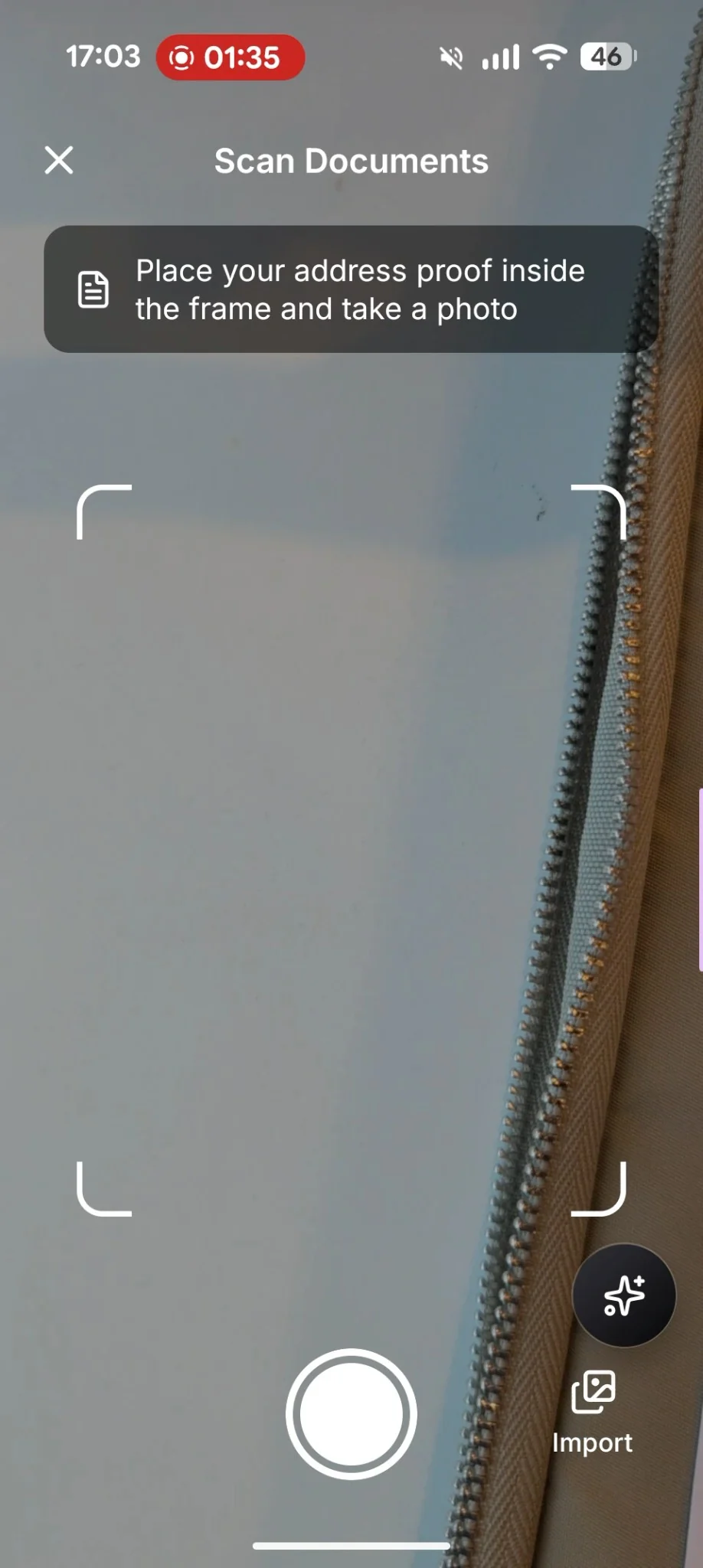
Mobile app interface for scanning documents, showing a camera view with a frame, a shutter button, and an import option

5. Double check the document and click Confirm to continue, or Retake to return to the previous step.
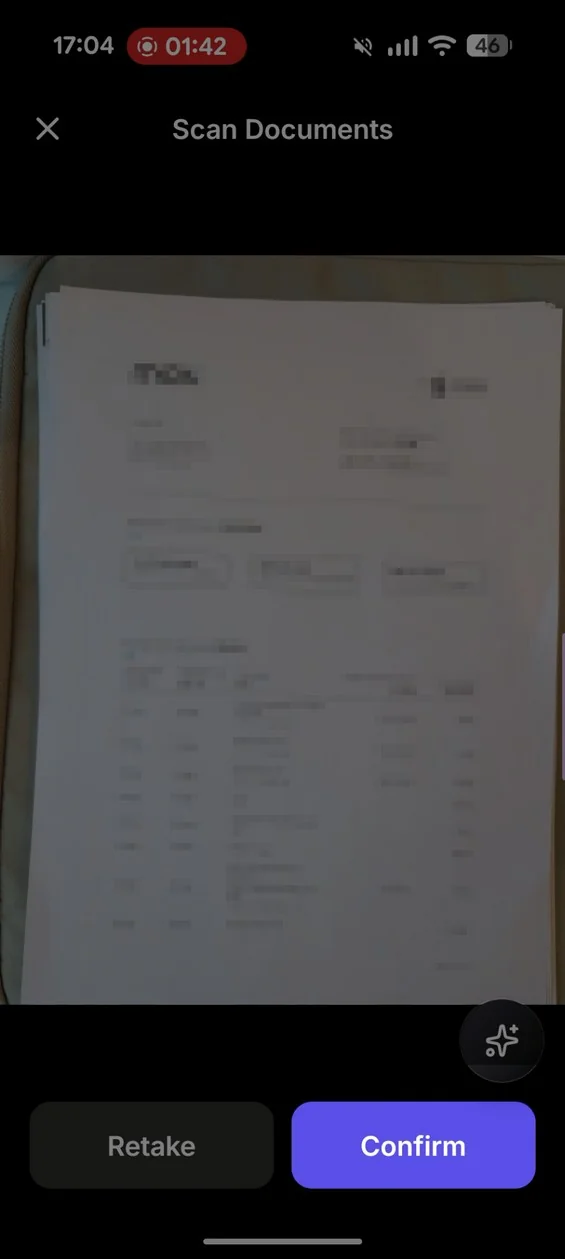
Document scanning interface showing a preview of a document with Retake and Confirm buttons

6. Click Back to Home and return to main screen and wait 3-5 minutes for the result.
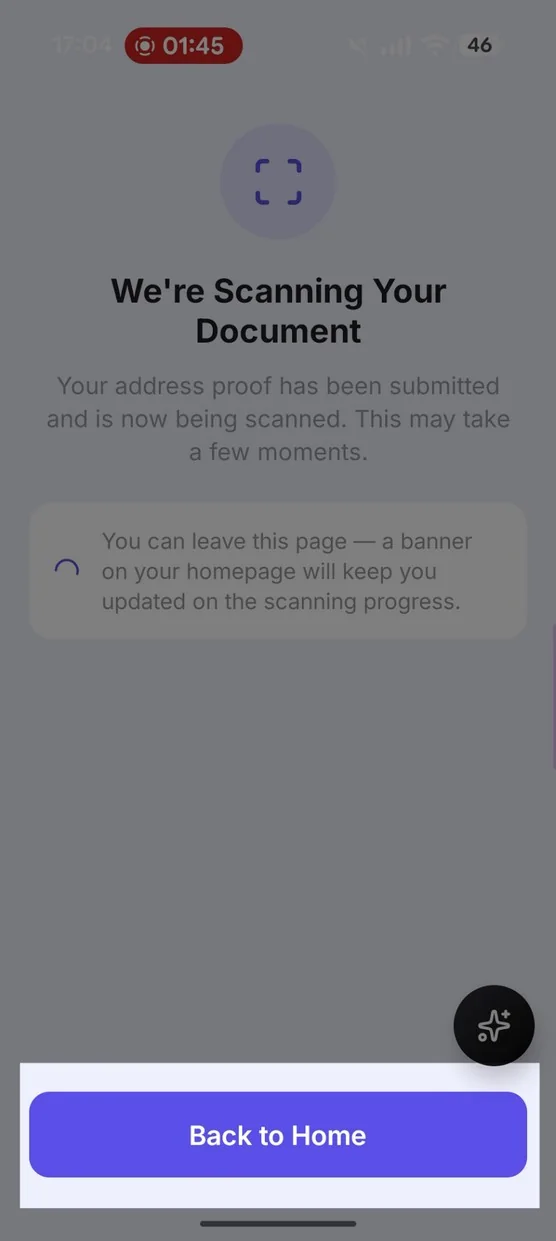
Scanning progress screen with the message We're Scanning Your Document and a Back to Home button

7. Return to the module to view the result. When approved, you may see Your KYC Level Has Been Upgraded!
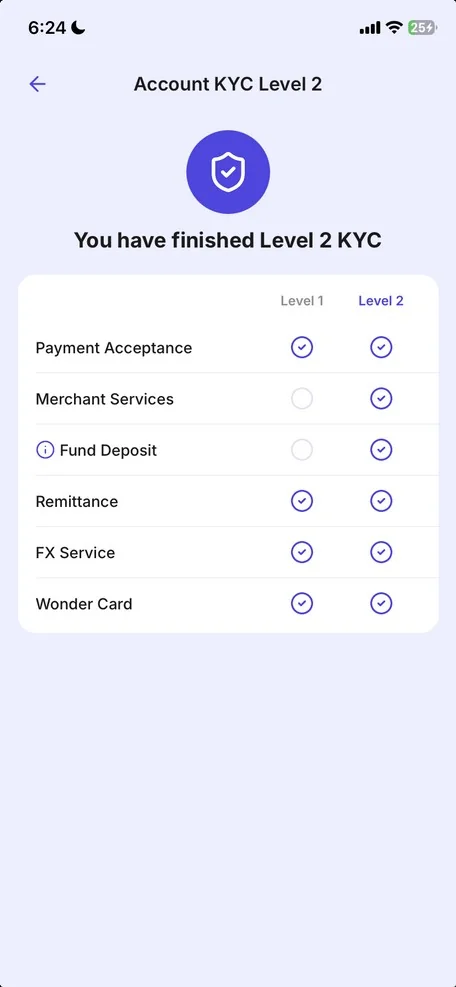
Account KYC Level 2 screen showing Level 2 completion

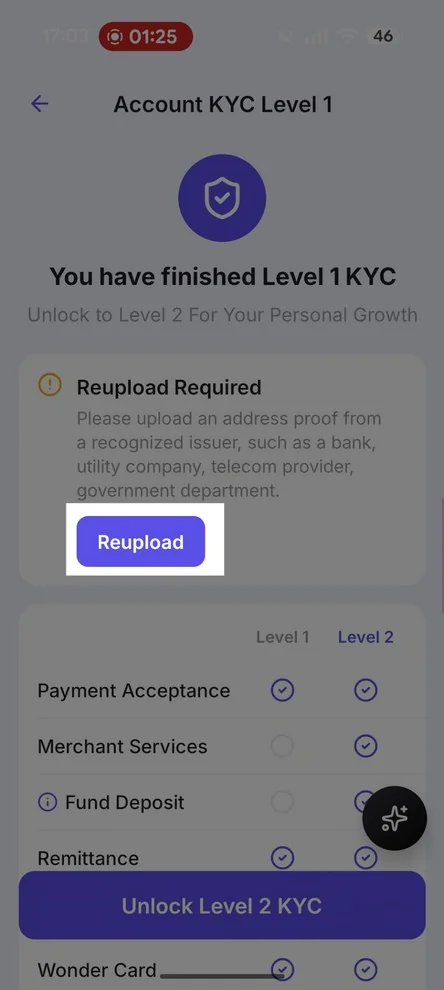
8. If asked, Reupload or Try Again.

Account KYC Level 1 screen showing Reupload Required

Did this answer your question?

If you still need help, our merchant support team is one message away.

Chat on WhatsApp

Related articles