
How to Link an External Bank Account for Personal Account
Settings & Extended ServicesWonder Mobile App 1 min read Created January 16, 2026 Updated September 30, 2026
How to Link an External Bank Account for Personal Account
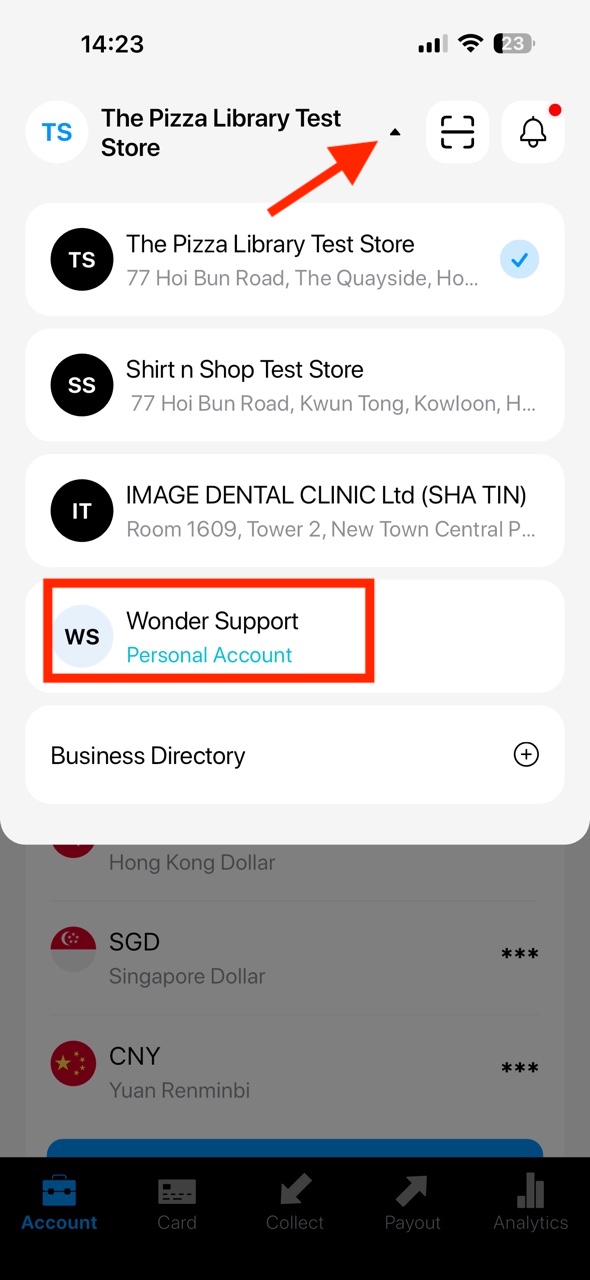
- Switch to Personal Account.
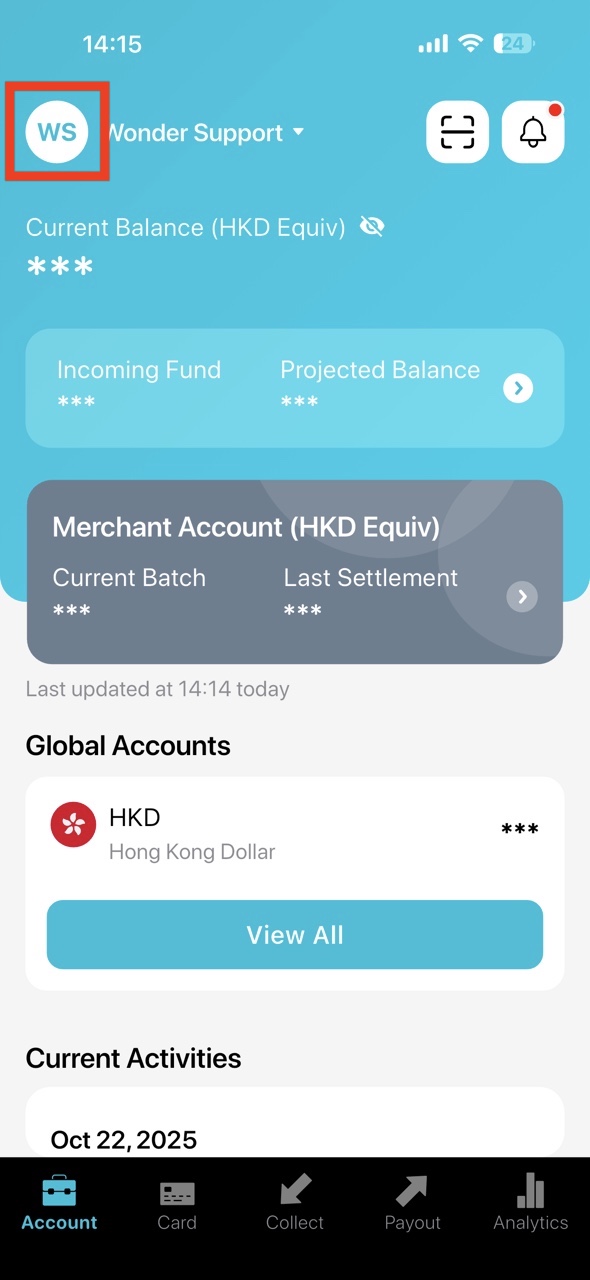
- Go to the Settings in your Personal Account.
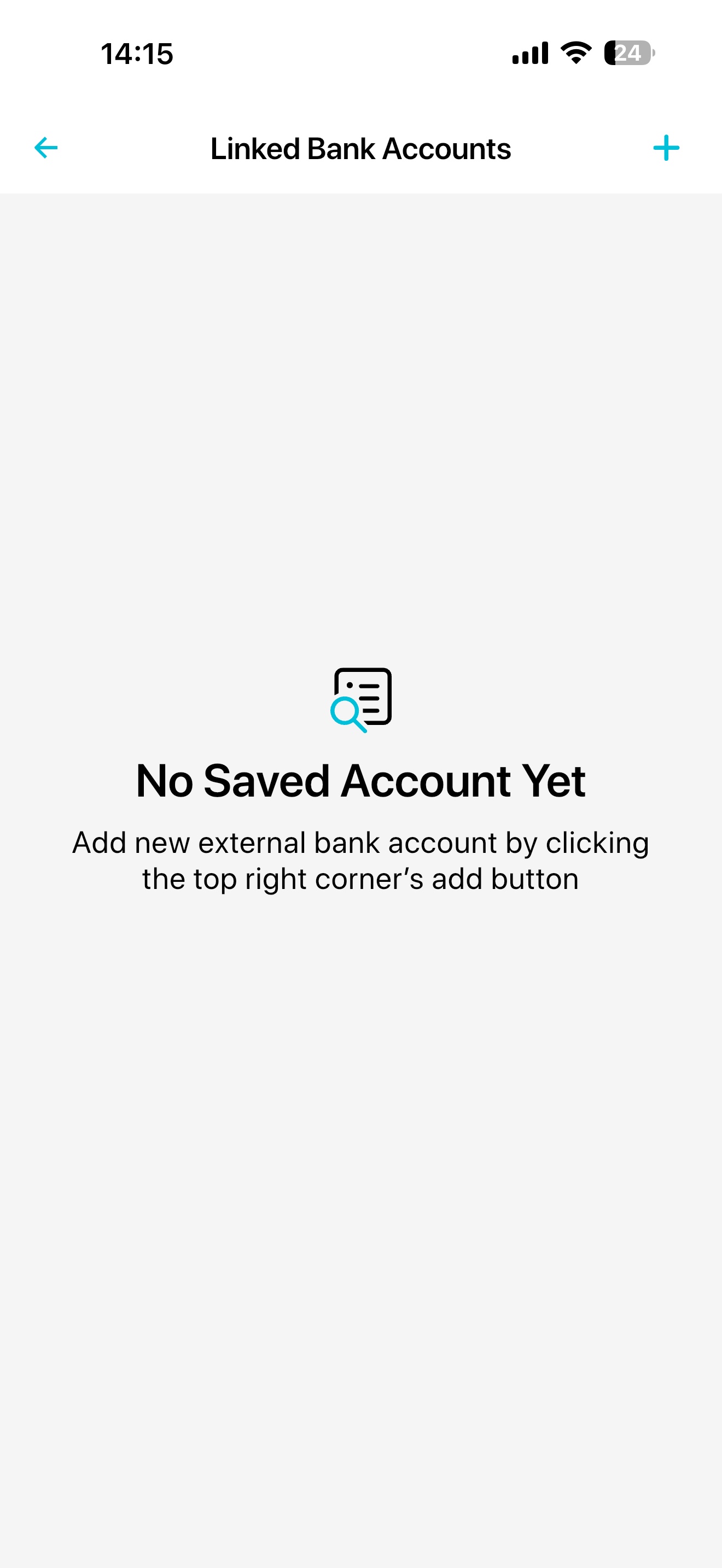
- Click the add icon on the top right corner.
- Submit your bank account with the requested information, then "Save". Please note that once the account is verified, you are not able to edit the information. The account holder name would need to be the same as your Full Name.
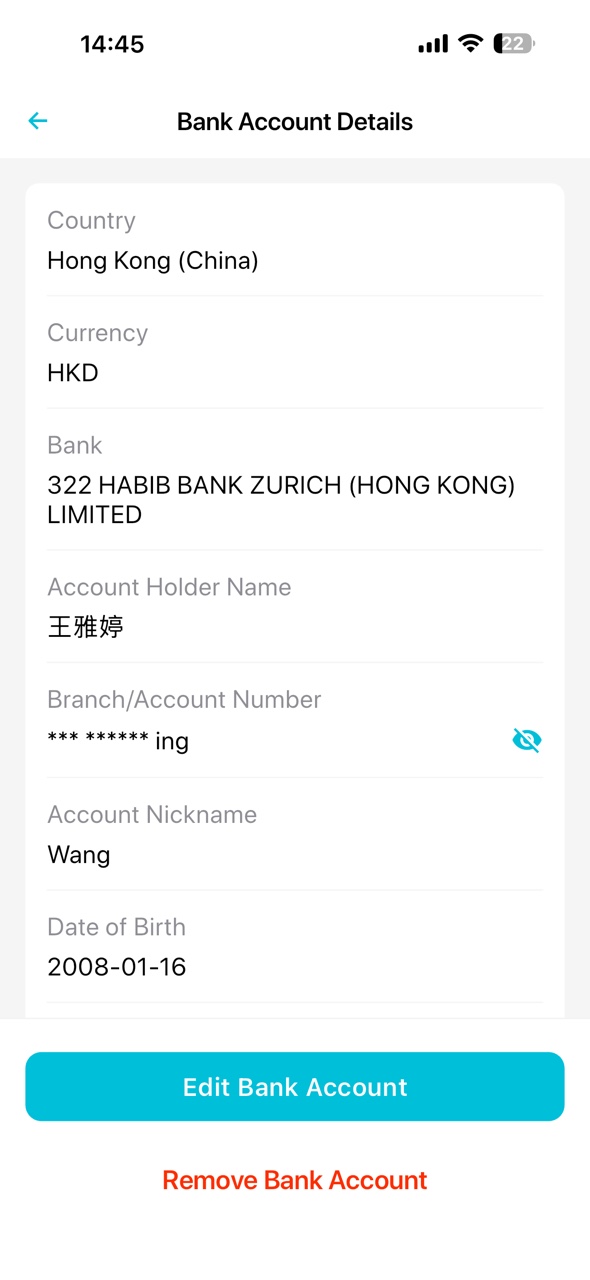
- You can edit or further submit information of your bank account if it cannot be verified automatically. To edit, from "Linked Bank Accounts" page, select the account to be verified, and "View Record".
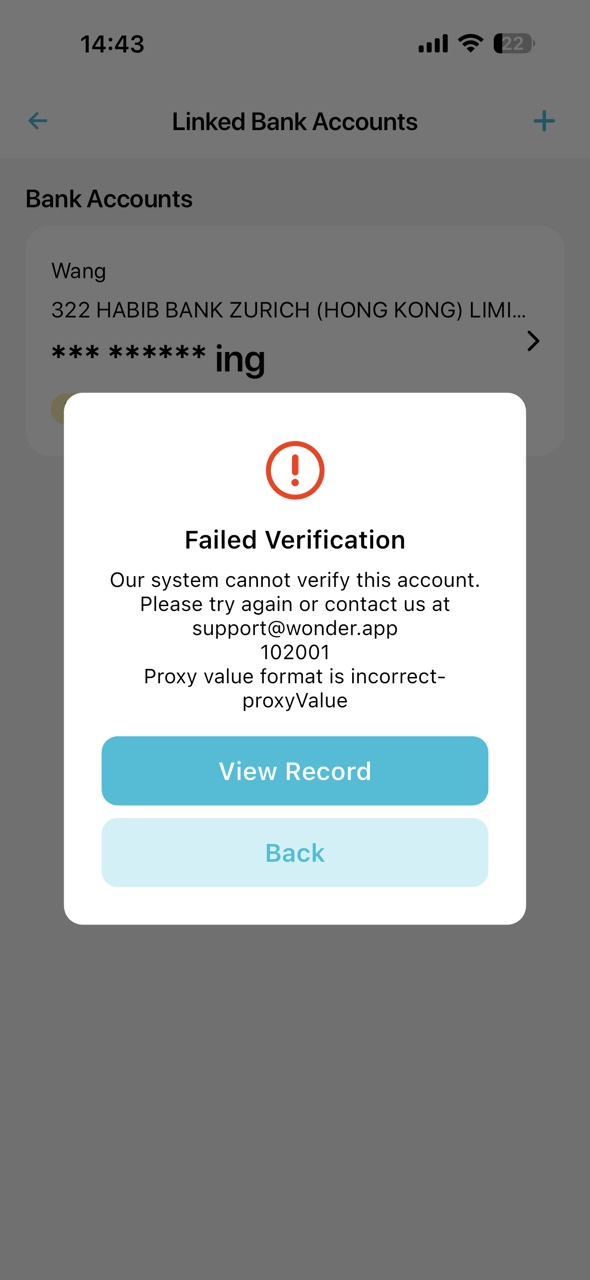
- Click " Edit Bank Account"
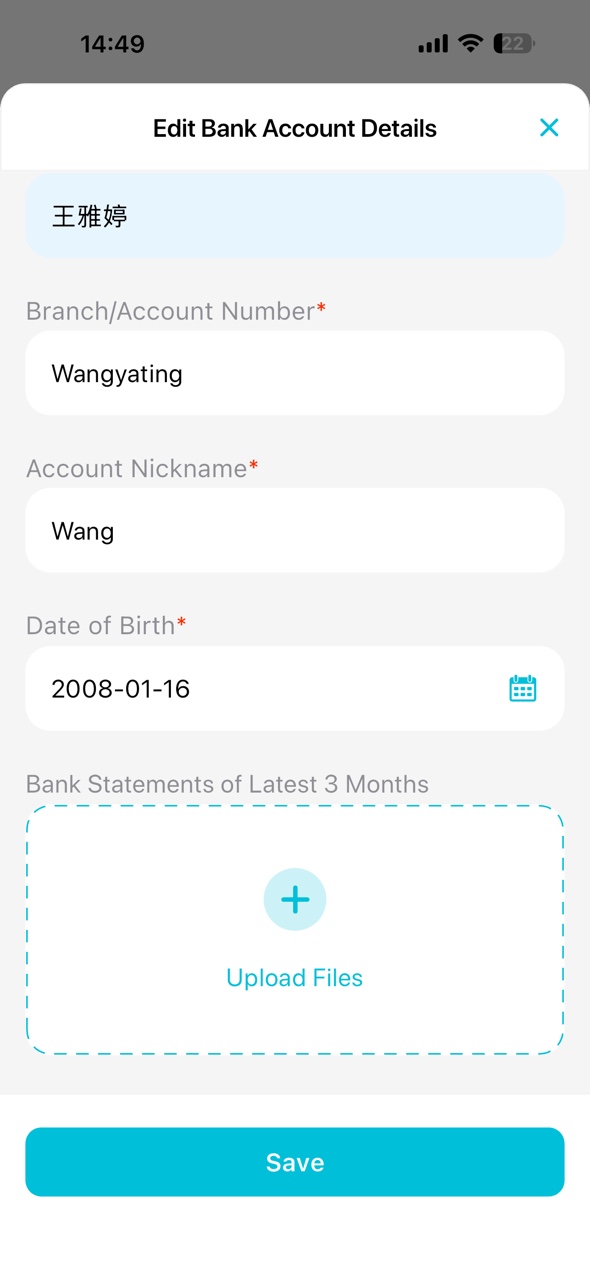
- You could choose to upload bank statements from your device's photo album or storage, to support the account information. Press "Save" after the documents are uploaded.
- For more assistance, you could contact us at support@wonder.app.
Did this answer your question?
If you still need help, our merchant support team is one message away.
Chat on WhatsApp